
Playground
Try models through the gateway from the dashboard, compare them, see where auto routing sends a prompt, run verdicts and searches, and let the assistant test a new model.
6 min readUpdated for v2.4.0Edit on GitHub
admin roleStart a session
Open Playground. A new session opens on a launcher that describes each mode, or you can type straight into the box at the bottom to chat through auto. Try in Playground on a model's page opens a session on that model, in Search mode for a search tool.
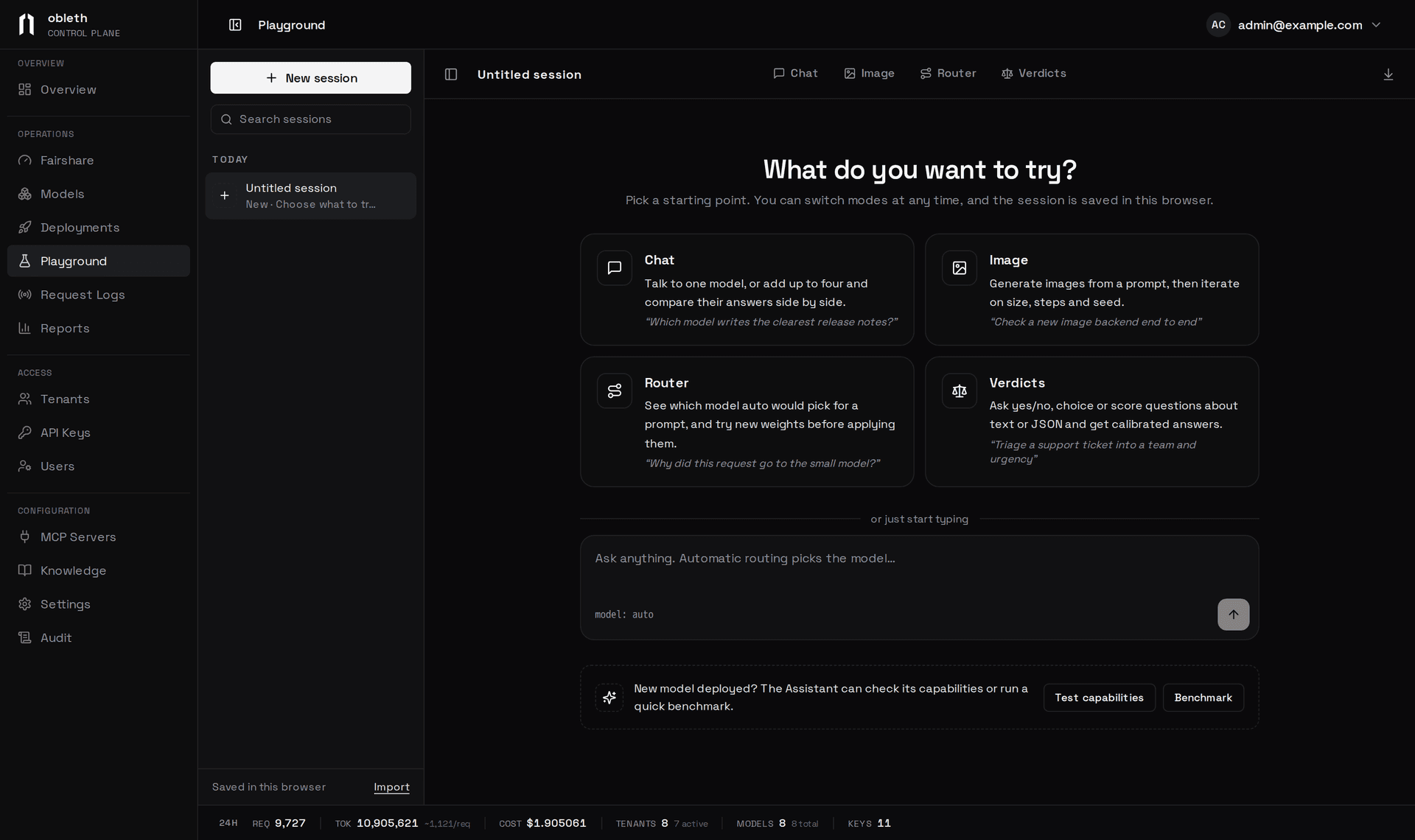
Every mode has the same layout: sessions on the left, the work in the middle, and a settings panel on the right that stays open until you hide it. Switch modes with the tabs at the top. A session remembers its mode, models and inputs.
Sessions are kept in this browser, for your account only. They are grouped by day and searchable; export one as a file with the download button, and bring it back with Import. Generated images, 3D models and Router and Verdicts results are not saved with the session.
Chat and compare
Pick one model, or up to four to compare. The model picker shows each model's context window, capabilities, price, router tags and live load, and also offers Automatic routing (auto) and the Assistant. With several models, the Send to row chooses which of them get the next message; each keeps its own conversation.
Each answer shows time to first token, tokens per second, tokens and cost, with a link to its trace in Request logs. In a comparison, the answers with the fastest first token, the fewest tokens and the lowest cost are marked.
A reasoning model's thinking shows in a Thinking block above its answer, which folds once the answer starts. It is never sent back to the model.
The settings panel holds the system prompt, temperature and max output tokens. A blank field uses the model's default. You can attach one image to a prompt.
Image
Image drives POST /v1/images/generations on an image model directly. The settings panel holds the size (256 to 1024 pixels square), images per run, and the backend-only negative prompt, steps and seed, which the backend may ignore. Each result shows its latency and cost and can be reused, run again or downloaded. When a mesh model is registered, 3D on an image sends it to 3D mode.
3D
3D runs a job on a mesh model through /v1/meshes: choose, drop or paste an image of one object and press Generate 3D. The settings panel holds the quality, the number of faces, the texture size and a seed, which the backend may ignore. While the job runs you see its stage, progress and place in the queue; the finished model opens in a viewer you can turn and zoom, with Download .glb.
A job takes minutes, so the session keeps its id: switch modes or reload and the job picks up where it was. The model itself is fetched again from the backend while the backend still holds it, so download anything you want to keep.
Router
Router shows where auto would send a prompt, without sending it: the classify, filter, score and pick stages, and each candidate's score split into capacity, cost and tag.
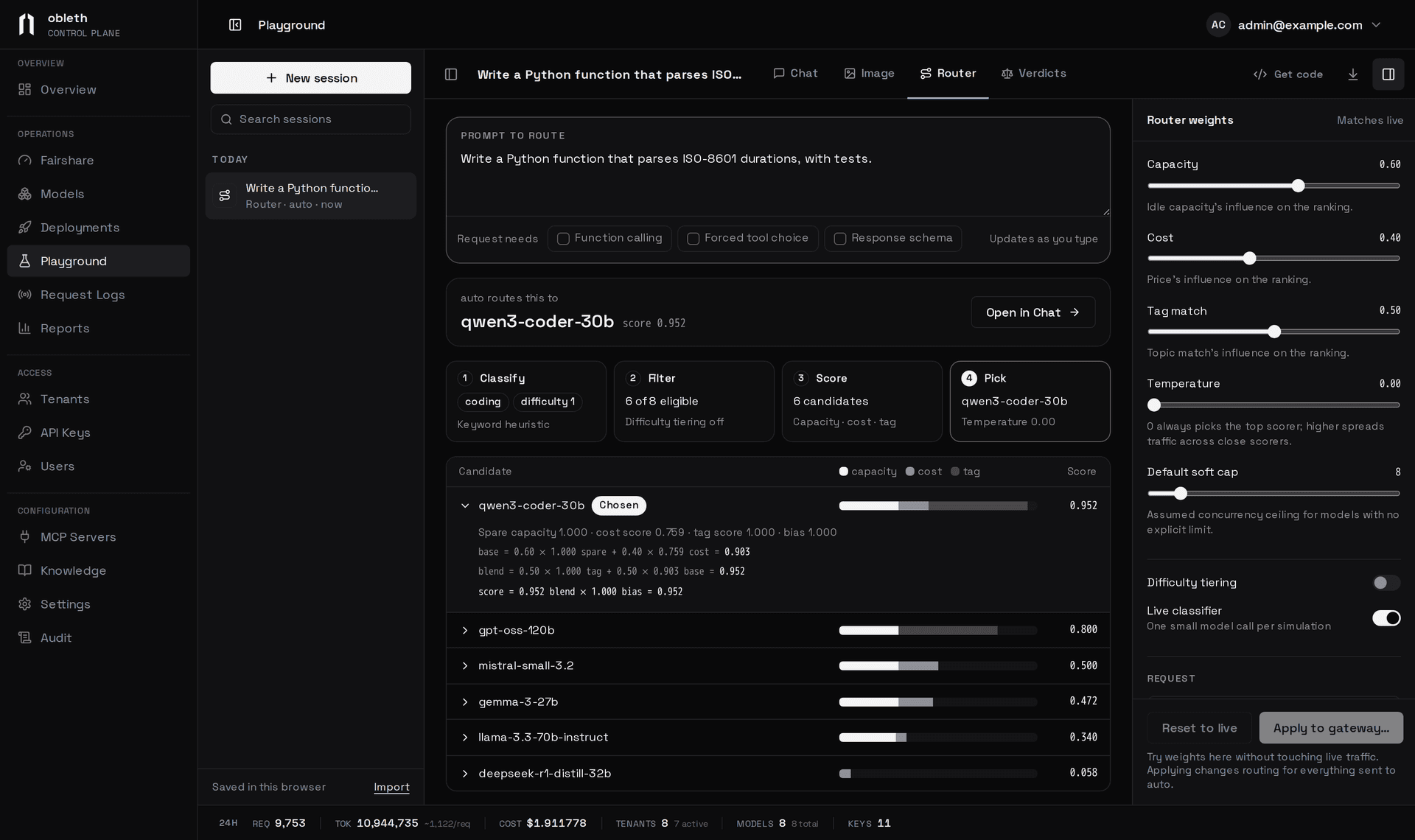
Live classifier (on by default) asks the configured classifier, as real requests do; off, the keyword heuristics run. The weight sliders change only the simulation, with live and draft scores side by side. Apply to gateway… lists the changes and asks before saving them to Settings › Routing, Reset to live discards the draft, and Open in Chat sends the prompt to the chosen model. See Auto routing.
Verdicts
Verdicts is a builder for the Verdicts API, read left to right: the state (text or JSON), the questions (up to 32, each boolean, choice or score, with an id and instructions), and the results. Each result shows its value, probabilities and confidence, with token use, latency and a link to the trace.
Search
Search sends a query to a search tool through /v1/search, as a client would, with how many results, how recent, and an optional list of sites to keep to (a minus in front leaves one out). Results show as a client gets them, and Copy JSON copies the response.
Get code
Get code turns the current request into cURL, Python or JavaScript against the gateway's data-plane URL (OBLETH_PROXY_BASE_URL), reading the key from $OBLETH_API_KEY. Router mode gives the auto request it simulated. The Assistant has no public API, so it has no code.
The Assistant
The Assistant is a helper that runs real work against the gateway and reports what happened, with the trace. Start it from Test capabilities or Benchmark on the launcher or in a chat's settings panel, or add Assistant from the model picker. It opens its own session, and each activity is a step-by-step card where you pick the model and options.
| Tool | What it does |
|---|---|
test_capabilities | Sends a real request for each capability the model is set up with (a ping, tool use, JSON mode, vision) and reports which boons fired |
run_benchmark | A concurrency ramp against the model, with latency and throughput per step, the capacity knee, and a 0 to 100 score. Asks for your approval before it sends anything |
test_mcp | The MCP handshake against registered servers, with each server's tools. See MCP gateway |
search_docs | Answers from this documentation, citing the pages it used |
Asking in plain language works too: "test gemma4" starts the capability test on that model. For the vision probe, attach a test image; without one, a small built-in image shows that the vision boon fires, not that the description is right.
The Assistant needs a model to think with. In Settings › Assistant, pick Its model: a model with function calling. With None, it passes your prompt to the model you name and returns the reply with its timings, without tools.
How Playground traffic is handled
Chat, Image, Verdicts and Search requests, and the Assistant's calls, go through the normal data plane as the gateway's reserved internal tenant. Admission, budgets, boons and tracing apply as for any client, so a boon on a model fires here too. The internal tenant is synthetic: its traffic is recorded as request type benchmark and left out of usage and cost figures unless you include internal traffic. Its key stays on the dashboard server and never reaches the browser.
Assistant settings
Settings › Assistant, or GET and PUT /api/v1/settings/charo:
| Field | Default | Meaning |
|---|---|---|
enabled | true | Shown as Playground. Off hides the Playground and the Assistant |
brain_model | none | The Assistant's model. None makes it a plain model tester |
tools_enabled | all on | Per-tool switches, keyed by tool name; a missing key is on. The dashboard shows May run benchmarks for run_benchmark |
bench_max_concurrency | 40 | Most concurrent requests a benchmark may ramp to |
bench_max_duration_s | 120 | Longest benchmark run, in seconds |
bench_max_requests | 500 | Most requests one benchmark may send |
The benchmark limits are enforced on the dashboard server, so a prompt cannot talk the Assistant into a larger load test. The agent loop runs at most four tool rounds per turn.
Where the documentation answers come from
search_docs reads an index of this site that is built into the dashboard image, so it works without outbound network access. A dashboard answers from the documentation as it was when its image was built.