
A tour of the dashboard
What each page of the dashboard shows, what you do there, and where to read more.
6 min readUpdated for v2.4.0Edit on GitHub
http://localhost:3002 with Compose, or your Ingress hostSigning in
Sign in with the admin account seeded from DASHBOARD_ADMIN_EMAIL and DASHBOARD_PASSWORD, or through SSO; see Sign-in and SSO. Every dashboard page needs the admin role. Accounts with the user role see the self-service portal instead.
A footer on every page shows the last day's requests, tokens and cost. Many numbers link to the requests behind them in Request logs.
Overview
The Overview answers "is anything wrong" first. One 1h / 24h / 7d control drives the page, and the header says in a line what needs attention.
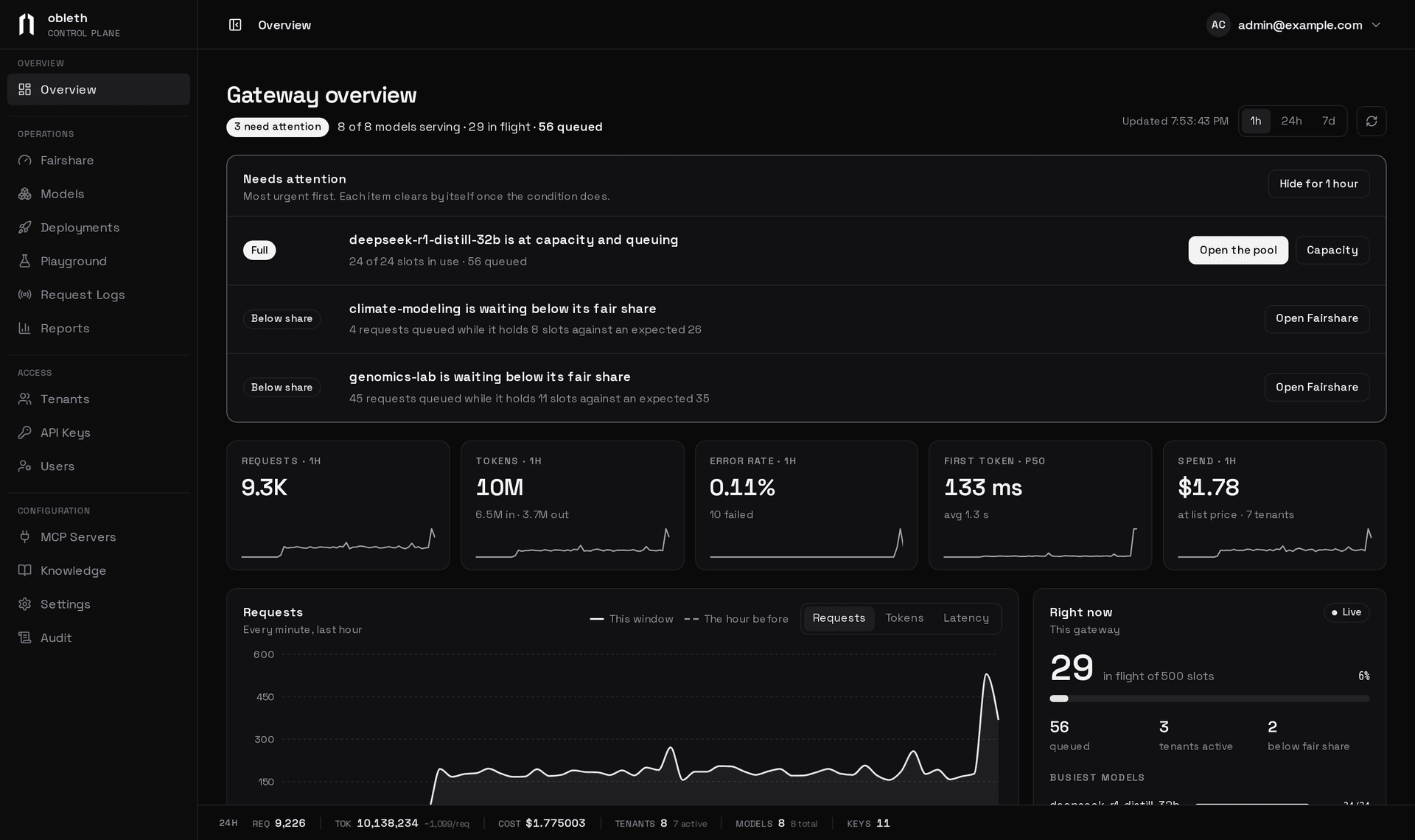
Needs attention lists failing models, full pools and tenants waiting below their fair share, each with a link to act on it. Five tiles compare requests, tokens, error rate, time to first token and spend with the previous window. Below are the traffic chart, every model's health and load, what is running now, top tenants and recent changes.
Operations
Fairshare
Every model pool, fullest first, with who holds its slots, who is waiting, and each group's use against its share. Open a pool to see each tenant's running requests against its fair share, or a tenant to change its weight or cap. Groups & weights edits group weights with a preview. See How fairshare works.
Models
A searchable table of every model (press /) with health, load, requests, time to first token, price, context and router tags. Select rows to check, switch, export or delete them together.
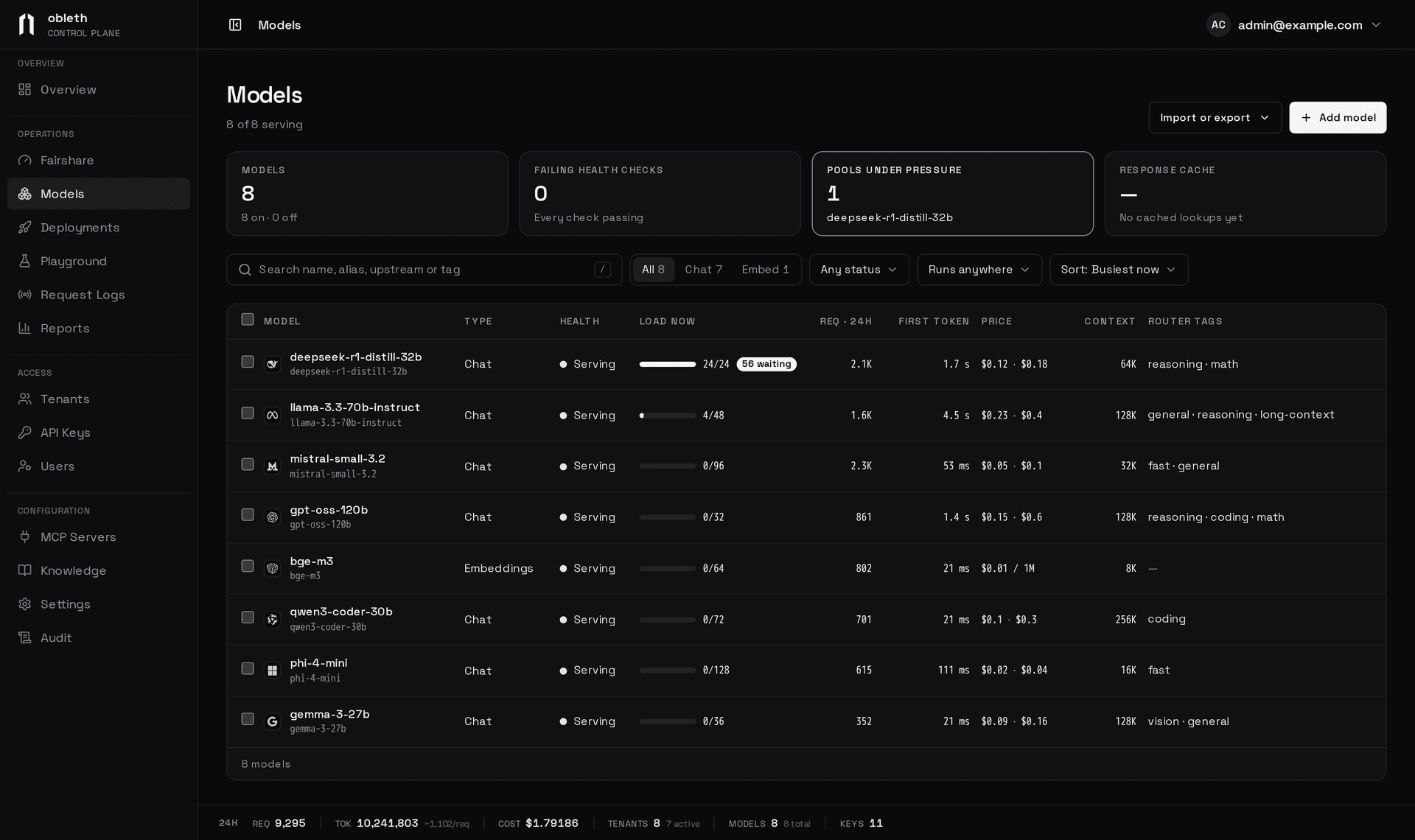
Each model has a page at /models/<name> with its activity and every setting, with Find a setting (⌘K) and one save bar. Add model checks the endpoint and fills in what it serves; new models start switched off and turn on when their first health check passes, and start staged until you make them active. See Model registry and Health checks.
Deployments
Models on your own compute: Kubernetes models obleth watches and sizes from their ready replicas, and models it launches as Slurm jobs. Each deployment shows its status, replicas, where it runs and pool load. A Slurm deployment's page scales, pauses and resumes it; New deployment launches one in three steps, from a recipe or a Hugging Face repo; recipes are a tab here.
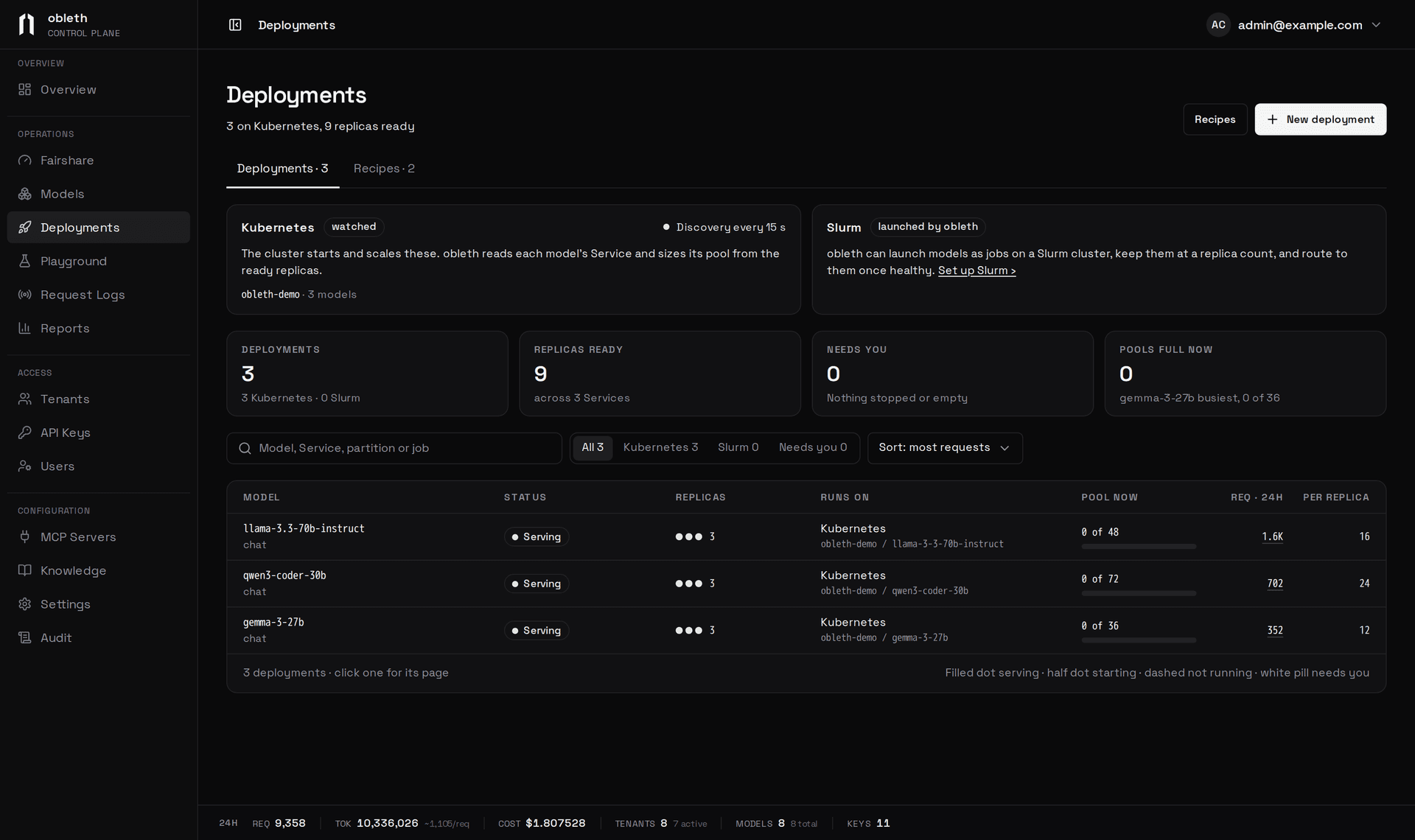
See Pool sizes and Slurm provisioning.
Playground
Chat with or compare up to four models, see where auto would route a prompt, generate images, run verdicts and searches, and have the Assistant test a model. See Playground.
Request logs
Every request, live, with a chart you can drag across to zoom, filters typed into the search box (status:error model:… team:…), and saved views. "What's in this window" counts the busiest status codes, models, teams and keys, with their failures.
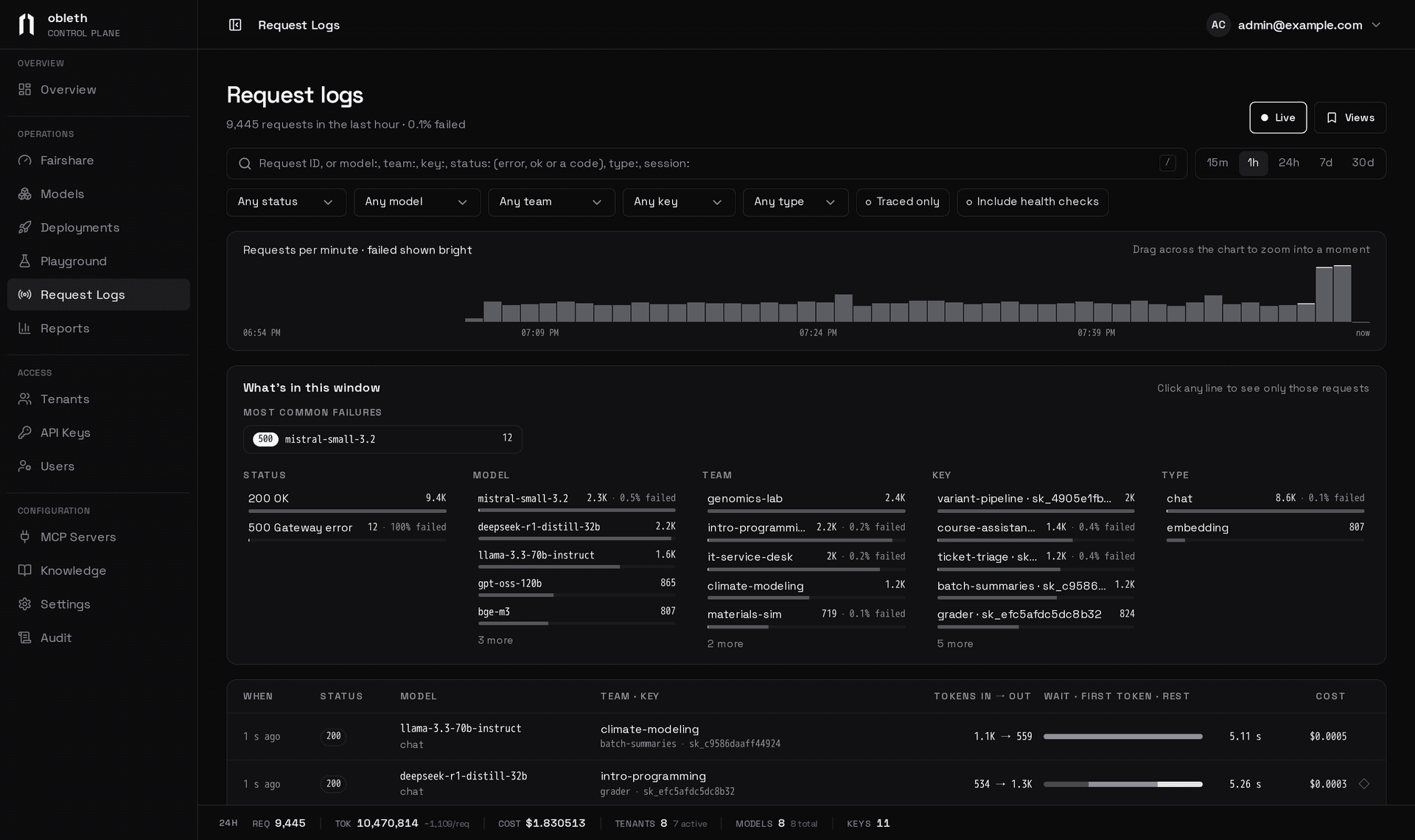
A request opens in a side panel with a line saying what happened, a timeline of its steps, every number, and why the auto router picked its model. See Observability.
Reports
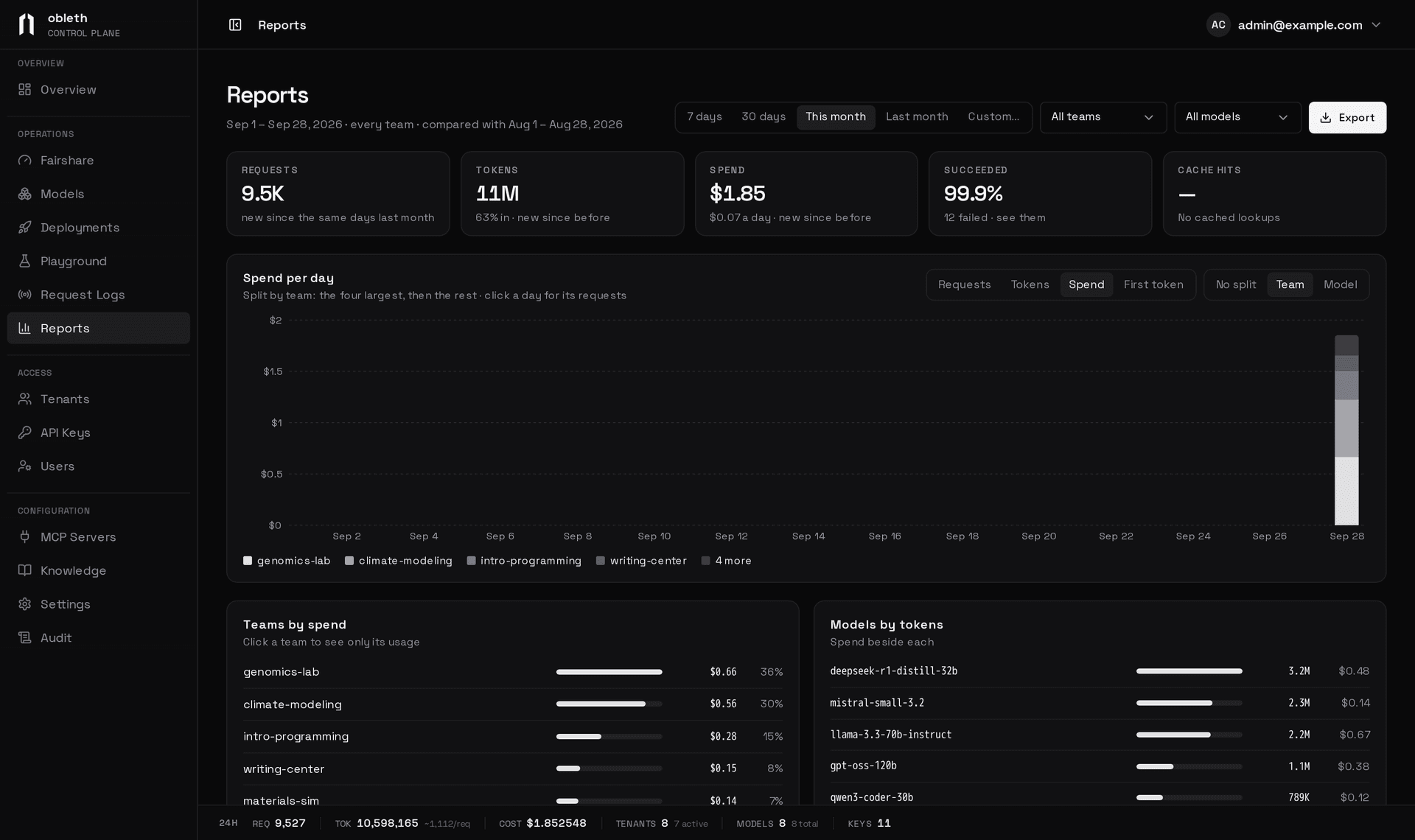
Usage over a range, filtered by team, key and model, with totals against the previous period, a daily chart split by team or model, a sortable breakdown, and CSV Export. Reports read the permanent daily rollup, so they keep history after raw requests expire.
Model speed, further down Reports, lists each chat model with a square per day (or per hour, over a day or two), shaded by how that period compared with the model's own usual speed, so a slowdown stands out whatever the model's speed. Its header counts the models that slowed by 20% or more against the previous period. Open a model for its median and slowest-tenth output speed, first token and prompt speed, a sentence on how its speed went, and a chart aligned with the squares. Models with too few requests to judge sit behind a Show more button. It reads raw requests, so it covers the request retention window; the API is GET /api/v1/usage/speed.
Access
Tenants
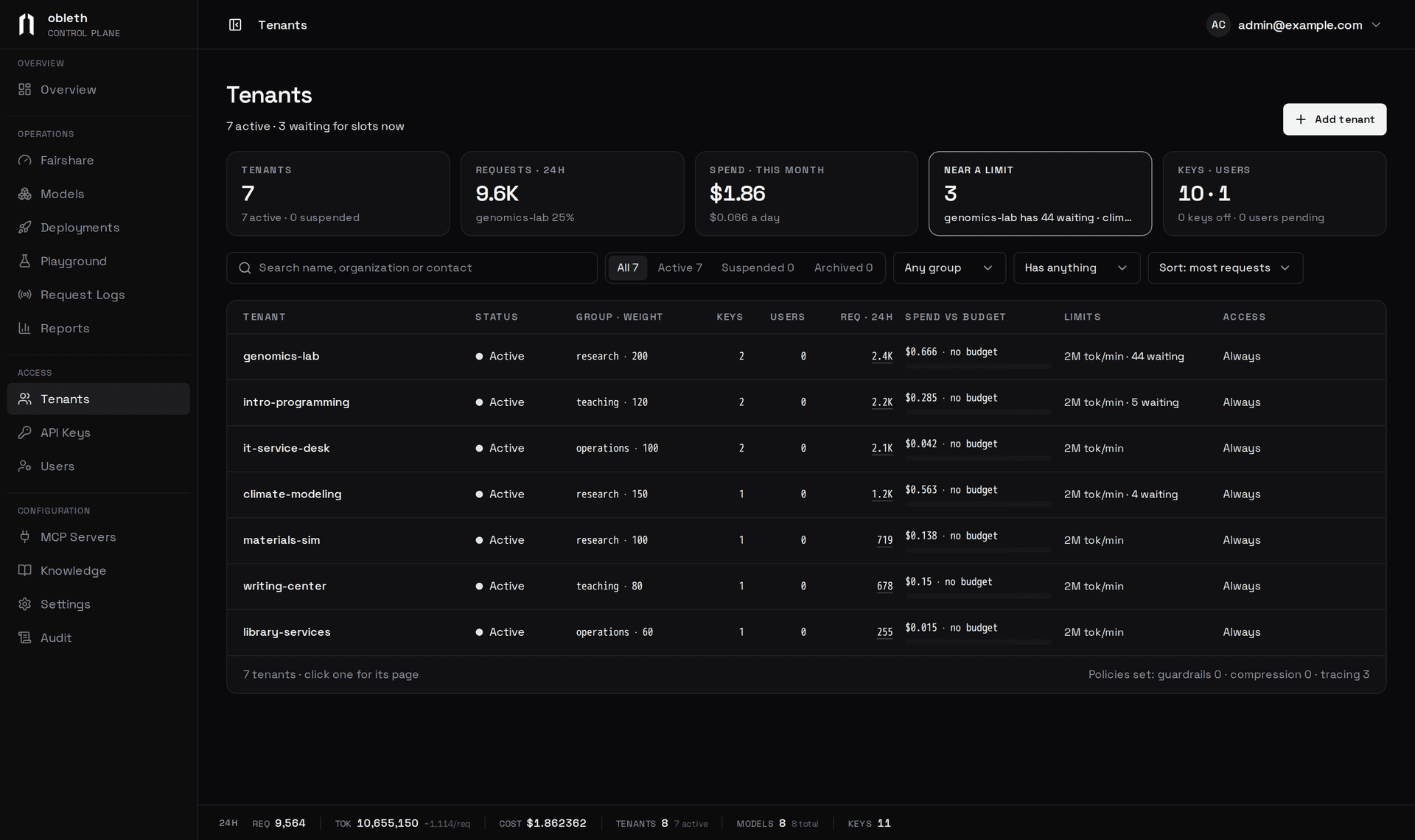
Every tenant with its group and weight, keys, requests, spend against budget, limits and access hours. Each tenant has a page with its activity and every setting, from weight and limits to guardrails. See Tenants and keys.
API keys
Every key with its tenant, last use, requests, spend and budget. A new key's secret is shown once. Open a key to change it, replace it, move it to another tenant or delete it; select several to act on them together. See Tenants and keys.
Users
Dashboard and portal accounts. People waiting for approval come first: pick a role and a tenant, then Approve. See Sign-in and SSO.
Configuration
MCP servers
Each server is checked when the page opens, with its tools, the models that use it, and its recent calls. Open one to grant it to models, edit or remove it. See MCP gateway.
Knowledge
Collections of documents models can retrieve from, with retrieval settings for the whole gateway. Each collection has a page with its documents, a test search, and the models attached to it. See Knowledge base.
Settings
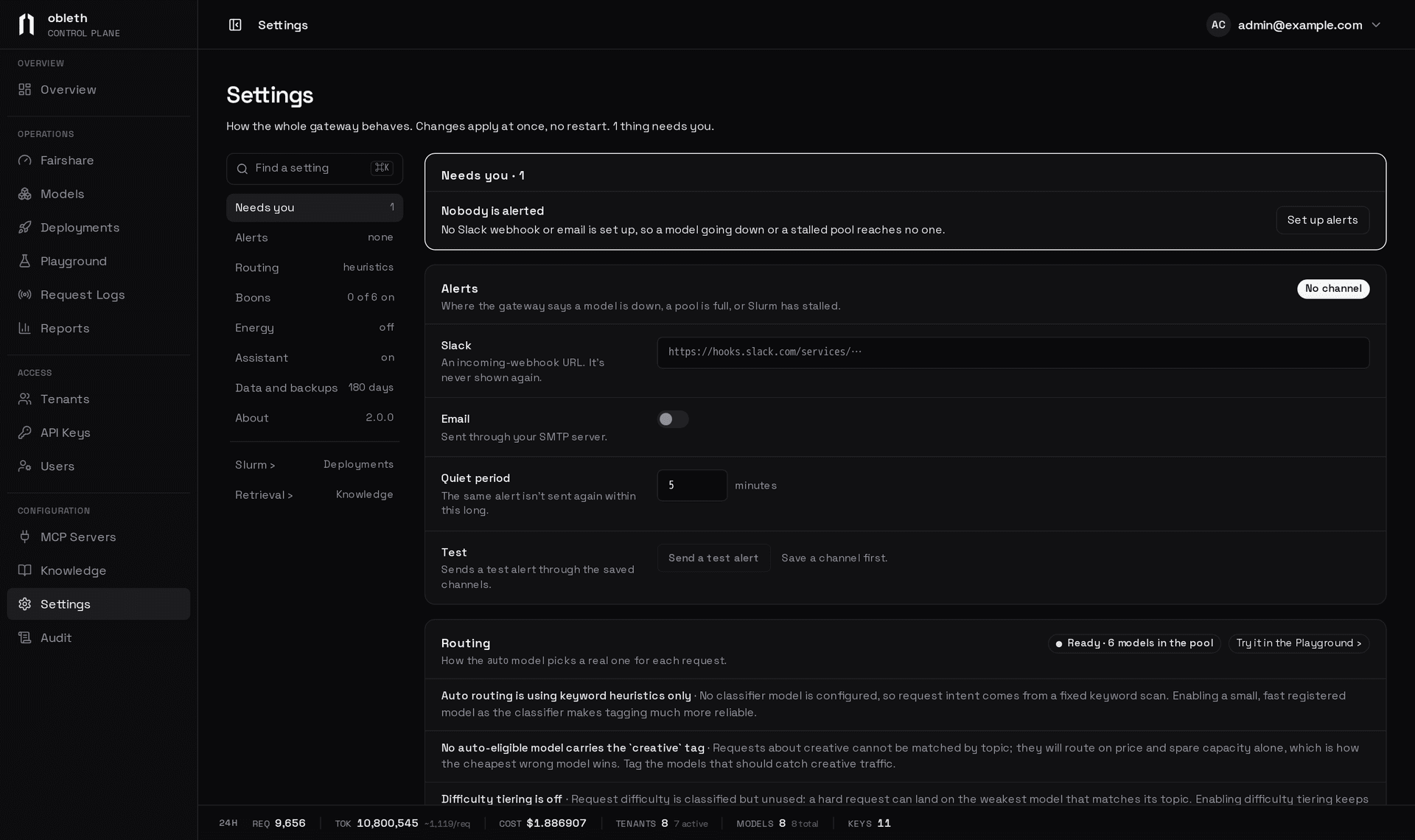
One page for how the whole gateway behaves, with Find a setting (⌘K) and one save bar that saves only the sections you changed. It opens on Needs you: things such as no alert channel, a boon that models ask for but is off, or router readiness warnings, each with a link to the fix.
| Section | What it sets |
|---|---|
| Alerts | Slack and email channels, the quiet period, and a test alert. See Alerting |
| Routing | The classifier and weights for auto. See Auto routing |
| Boons | One row per boon with its switch and settings. See Boons |
| Energy | Power readings and rates. See Energy and carbon |
| Assistant | The Playground switch and the Assistant's model. See Playground |
| Data and backups | Usage retention, backup and restore, and Reconcile cache…. See Backup and restore |
| About | The gateway version |
The Slurm connection lives on Deployments, and retrieval settings on Knowledge. Changes apply to the running gateway without a restart.
Audit
Every configuration change, written as a sentence with who made it, filterable and exportable. See Audit log.
Self-service portal
Accounts with the user role and a tenant land in the portal: the models their tenant may use, its keys (which they can create, turn off and delete), and its usage. A pending account, or one with no tenant, sees an awaiting-approval screen. See Tenants and keys.
How the dashboard connects to the gateway
The dashboard reads and writes gateway state only through the Management API, so validation and the audit log live in one place. It keeps its own sign-in tables in Postgres (DATABASE_URL) and never touches the gateway's tables, Redis or ClickHouse.
| Variable | Purpose |
|---|---|
OBLETH_ADMIN_BASE_URL | The Management API, such as http://localhost:9180 |
OBLETH_ADMIN_TOKEN | The admin token for every Management API call. Held on the server, never sent to the browser |
OBLETH_PROXY_BASE_URL | The data plane, used by the Playground (default http://localhost:8080) |
DATABASE_URL | Postgres for the sign-in tables |
DASHBOARD_SESSION_SECRET | Session signing secret, at least 32 characters. Used as BETTER_AUTH_SECRET when that is not set |
The sign-in variables are in Sign-in and SSO. With Compose they are all set in deploy/docker/.env, whose example admin token must be changed before the stack is reachable from a network.