
Connections
Give the model tools from MCP servers, Slurm clusters and Kubernetes clusters, with approval for anything that changes state.
3 min readUpdated for Chat 0.5.2Edit on GitHub
Add a connection
You can add your own connections, and administrators can share one with every account. Every active connection is on in a new chat; the composer's Tools button and the chat's Details tab switch them per chat. You can switch a shared connection off for all your chats.
In Settings › MCP servers, add the server's URL and, if it needs one, an access token (sent as Authorization: Bearer). Chat connects once to list the tools and keeps that list until you edit or refresh the connection.
Chat speaks the Streamable HTTP transport (protocol 2025-06-18). Servers that only offer the older SSE transport, or that need an OAuth sign-in, aren't supported yet.
For a shared Slurm or Kubernetes cluster, the administrator stores only its address. You add your own token under the cluster's entry; until you do, that cluster stays out of your chats. A shared MCP server can work the same way: when it shows Add your token, it calls the server with your own token.
Your administrator chooses which kinds of connection are available. If Compute › Clusters or Settings › MCP servers is missing, they're turned off on your installation; see Enable connections.
See a cluster live
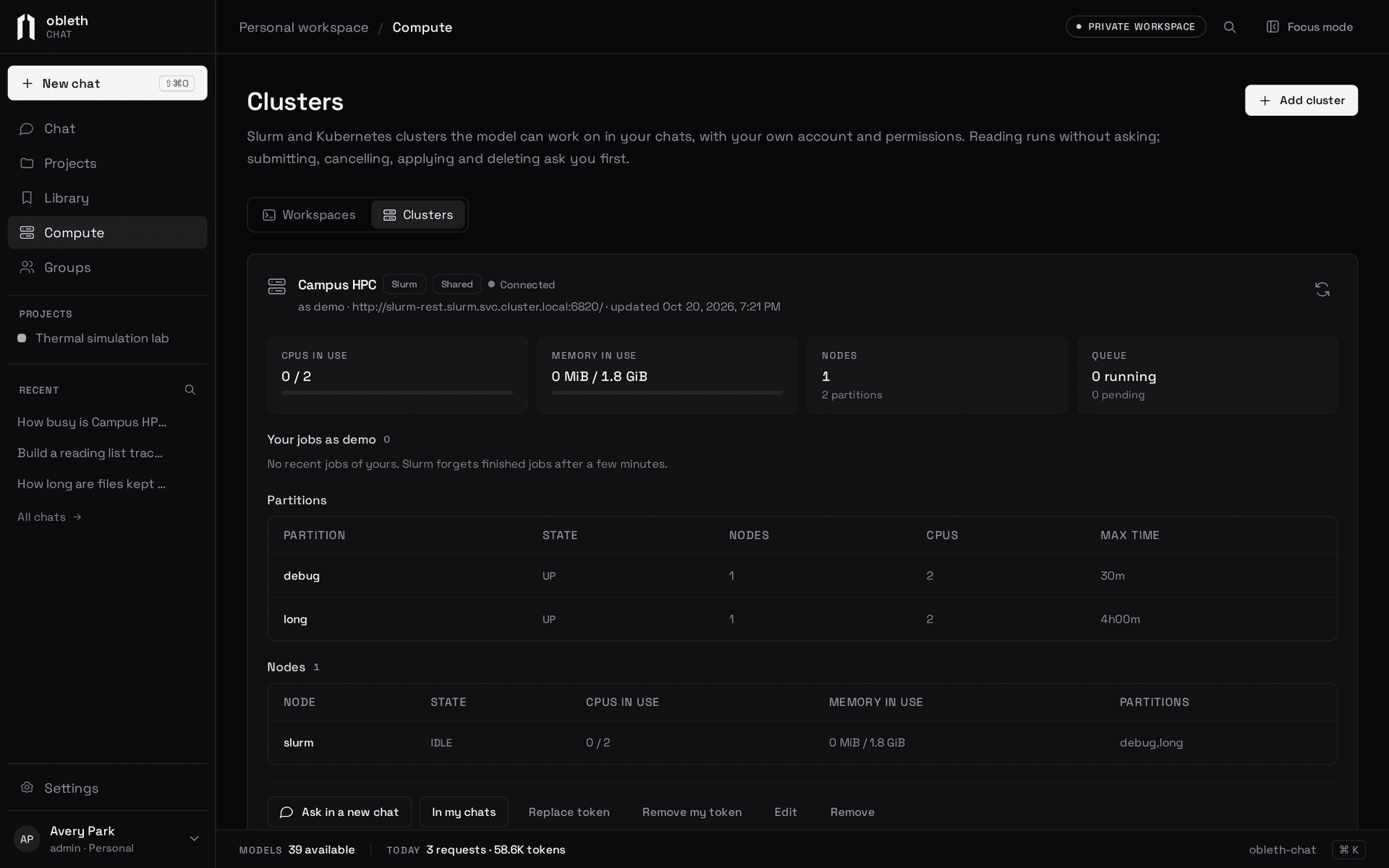
Compute › Clusters shows each cluster as your account sees it, refreshed every 30 seconds:
- Slurm: CPUs and memory in use, the queue, partitions, nodes and your recent jobs.
- Kubernetes: quota use, pods, deployments, jobs, nodes when you may list them, and what you may do in the namespace.
Approve what the model does
Tools that only read run without asking: MCP tools marked readOnlyHint, and the Slurm and Kubernetes tools that list, get or read logs. Any other tool waits on a card in the answer with Allow and Deny, for up to 15 minutes.
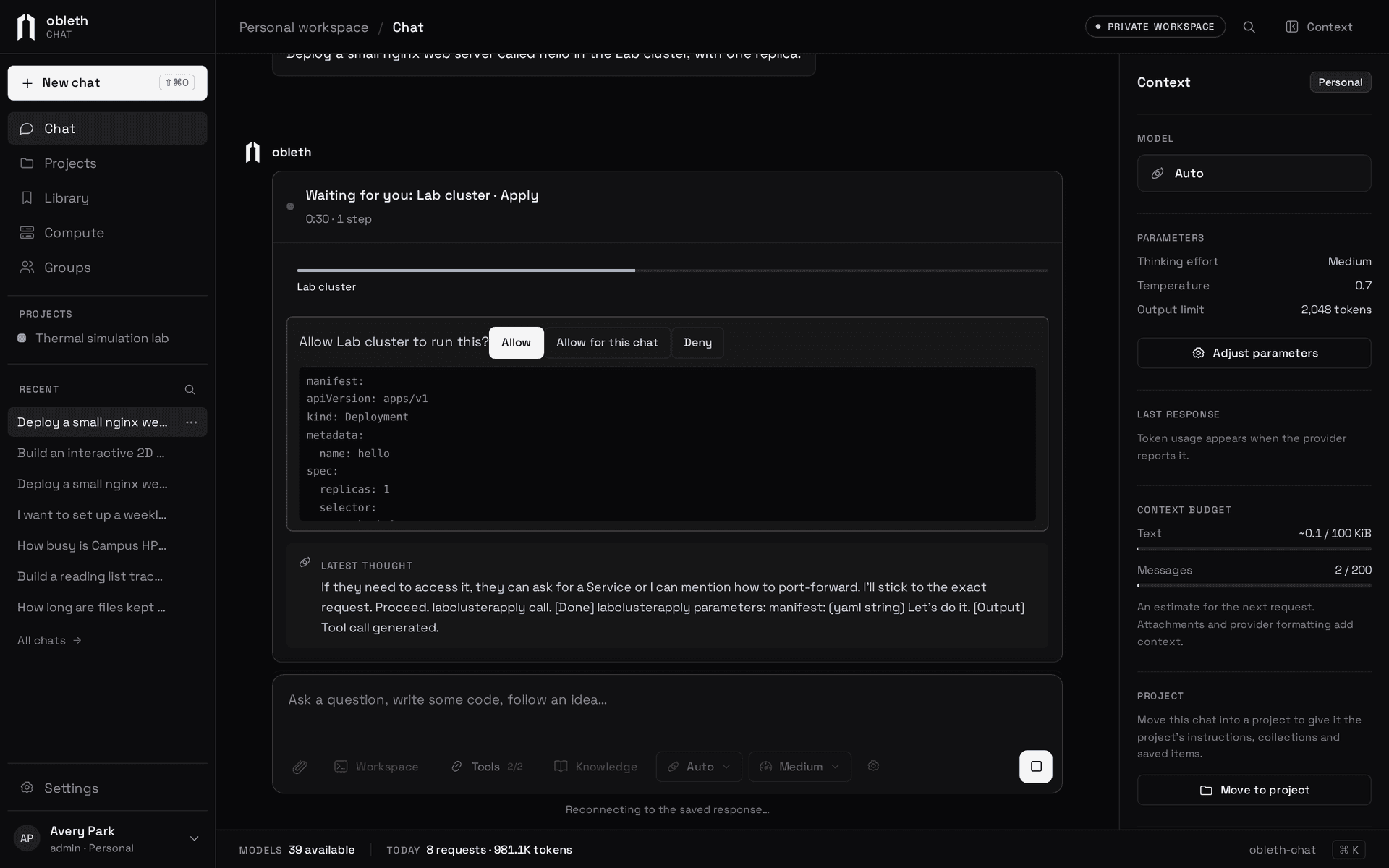
Allow for this chat lets that one tool run without asking for the rest of the conversation. A connection can also be set never to ask. Decisions are stored in Postgres, so the answer continues on whichever replica picks it up.
Auto mode
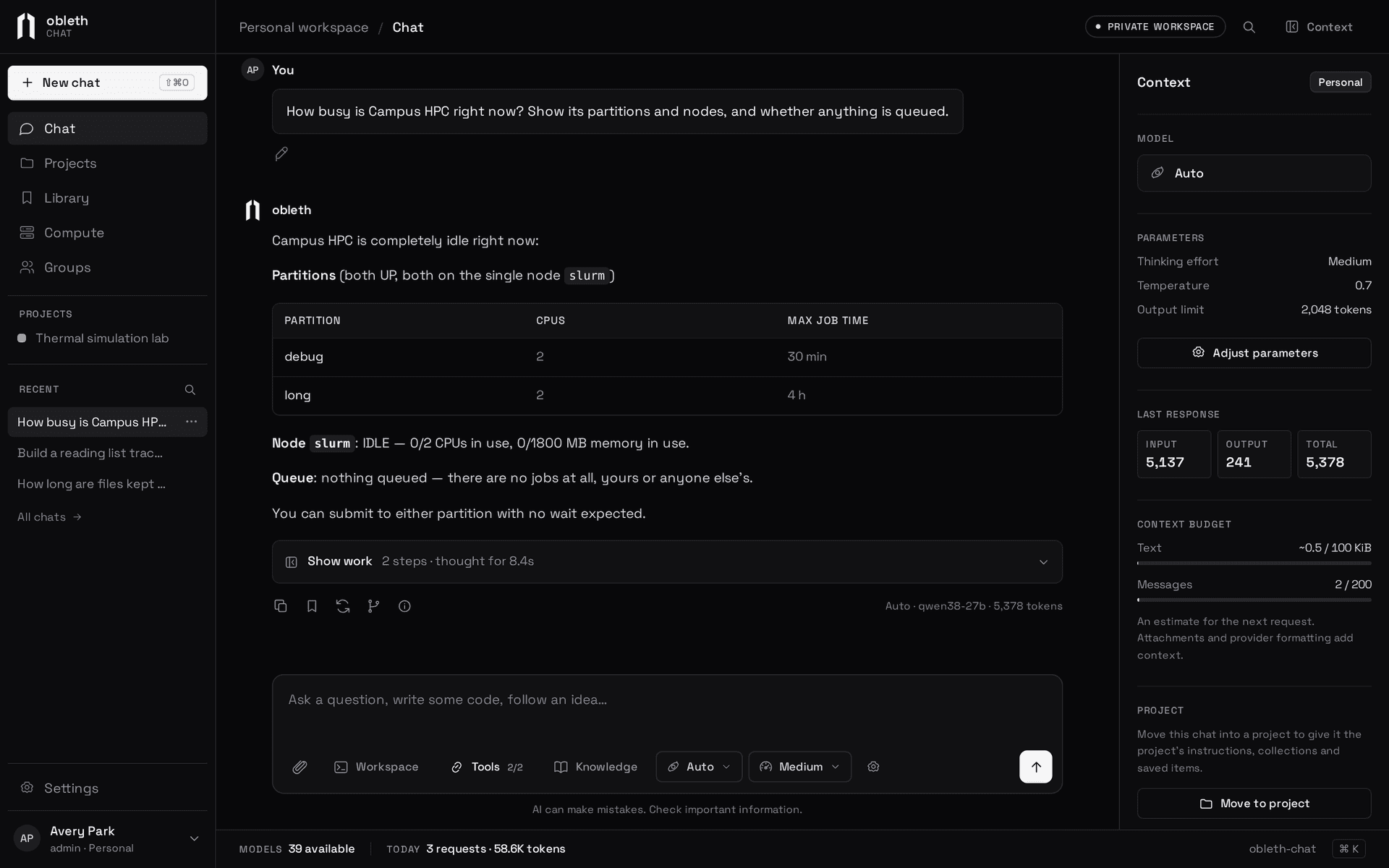
In Tools in the composer, switch on Auto mode to let every tool in that chat run without asking, including ones that submit, apply or delete. The Tools button then shows Auto. Use it for long work you won't be watching, such as research runs, which start in Auto mode. A turn in Auto mode also has no step or time limit; see Long turns. Tools still act with your own tokens, so they can do only what you can. Your administrator can turn Auto mode off for the installation.
Limits and safety
- Each tool appears to the model as
<connection name>__<tool>, up to 128 tools per request. - Tool output is cut to 48 KiB for the model. A call times out after 2 minutes.
- Your own connections must use
httpsand reach public addresses. Chat resolves the host itself, refuses loopback, private and link-local ranges, and follows no redirects. Shared connections may usehttpand internal addresses. - Tokens are encrypted at rest with XChaCha20-Poly1305 and never returned by the API. Your token for a shared connection is bound to both the connection and your account.